
Use this guide to send a survey automatically from any Salesforce Flow with the Send InPoll Survey action. For admins.
Send InPoll Survey emails a personal survey link when something happens in Salesforce, for example when a Case closes. Each call creates an invitation, so the answer is linked to the person and to the record. Nothing outside Salesforce is needed.
Before you start
- Publish the survey. The action only sends published surveys. See Publish a survey.
- Finish the survey site in InPoll Settings. Without it the action cannot build a link. See Set up the survey site (guided).
- In Setup, open Deliverability and set Access level to All email. Otherwise Salesforce does not send the email.
- You do not need to give the people who trigger the Flow any InPoll permissions. For example, a support agent who closes a Case can start it.
Find the action in Flow Builder
- In Setup, open Flows and create a Flow, or open an existing one. For example, create a Record-Triggered Flow.
- Click the plus icon where the survey should be sent, then click Action.
- Search for Send InPoll Survey. It is listed under the category InPoll.
- Select it and fill in the inputs described below.
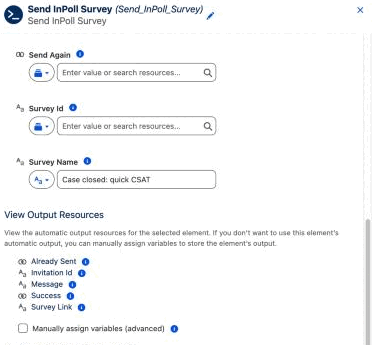
Inputs
Only the survey and, usually, the related record are needed. Everything else is optional.
Input | What to enter |
|---|---|
Survey Name | The name of a published survey. Use this or Survey Id. If two published surveys have the same name, InPoll uses the one published most recently. |
Survey Id | The Id of a published survey. If you fill in both, Survey Id is used. The Send screen of the survey shows the Id with a Copy button. |
Related Record Id | The record the survey is about, for example {!$Record.Id} for a Case. InPoll links the answer to this record and to its Account. |
Recipient Id | The Id of a Contact, Lead or User to send to. Leave it empty to let InPoll find the person from the related record (see the next section). |
Email Address | Send to this address instead of the recipient's own email address. |
Email Subject | Optional. If empty, the subject is: We would like your feedback, followed by the survey name. |
Email Message | Optional. If empty, InPoll sends a short default message. The email always has a Start the survey button. |
From Address | Optional. A verified organization-wide email address to send from. Any other address is refused. |
Send Again | Set to true to send even if this survey was already sent to this person for this record. |
Only Create Link | Set to true to create the invitation and return its link without sending an email. |
Merge fields in the subject and message
You can use these merge fields in Email Subject and Email Message:
- {!Recipient.FirstName} and {!Recipient.Name}: the person who gets the email.
- {!Record.CaseNumber}: any field of the related record that the running user can read. Replace CaseNumber with the field you need.
- {!Survey.Name}: the survey name.
- {!SurveyLink}: where the Start the survey button goes. If you leave it out, the button is added at the end.
Flow Builder also uses the {!...} form for its own resources. Send a test email to check that your merge fields come out filled in.
Who gets the email
InPoll picks the recipient in this order:
- Email Address, if you fill it in. The email goes to that address.
- Recipient Id, if you fill it in. It must be a Contact, Lead or User, and that person needs an email address.
- If both are empty, InPoll uses the related record. A Case sends to the Case's Contact. A Contact or Lead record sends to that person.
If none of these gives a recipient, nothing is sent and Message explains why. For another object, such as an Opportunity, fill in Recipient Id or Email Address yourself.
Outputs
The action returns these values. Use them in a Decision or later elements. In the template flow the action is named Send_InPoll_Survey, so Message is {!Send_InPoll_Survey.Message}.
Output | Meaning |
|---|---|
Success | True when the invitation was created and, unless Only Create Link is on, the email was sent. It is also true when nothing was sent because the survey had already gone to that person. |
Already Sent | True when nothing was sent because this survey was already sent to this person for this record. |
Invitation Id | The Id of the invitation that was created. |
Survey Link | The person's personal survey link. |
Message | What happened, or why it failed. For example: Sent to [email protected]. |
The action does not stop the Flow when it fails. It sets Success to false and explains in Message. Add a Decision after it if you want to react, for example to create a task.
Never twice for the same record
By default InPoll does not send the same survey twice to the same person for the same record. If that happens, Already Sent is true, Success is true and Message starts with: Already sent. This keeps a Case that is reopened and closed again from surveying the customer again.
A failed email does not count, so a later try can send it. To send again on purpose, set Send Again to true.
InPoll only checks the same survey, person and record. It does not stop the same person getting a survey about a different record. If you want a rule such as one survey per customer per 90 days, add a condition to your Flow.
Link only: send the email yourself
Set Only Create Link to true to create the invitation without sending any email. InPoll returns the personal link in Survey Link, and Message says: Link created.
You can then put the link into your own email alert, a task or a text message. The answer is still linked to the person and the record. In this mode a recipient is optional.
See the invitations
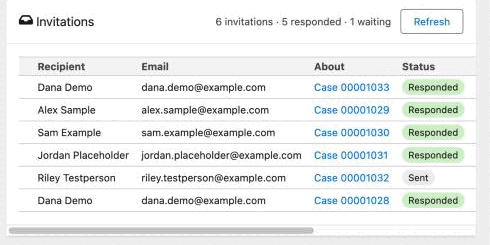
Every invitation created by the action appears on the survey's Send screen, in the Invitations table. Open the survey and click Send. The Send tab is hidden for draft surveys.
- Recipient and Email: who it went to.
- About: the record the survey is about, for example the Case.
- Status: Sent, Opened, Responded or Failed. For Failed, the error is shown.
- Sent and Responded: when.
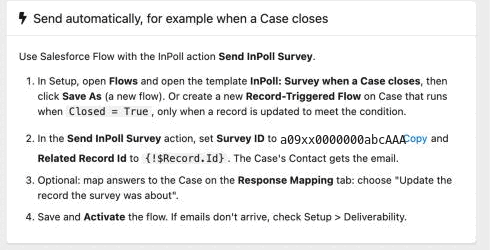
The Send screen also has a card called Send automatically, for example when a Case closes. It repeats the steps and shows the Survey ID with a Copy button.
Troubleshooting
If nothing arrives, check the Message output of the action and the Status in the Invitations table. These are the usual messages.
Message | What to do |
|---|---|
Survey not found. Check the survey Id or name. | Check the spelling of Survey Name, or paste the Id again. The survey must be published. |
The survey (name) is not published. Publish it first. | Publish the survey. Drafts, archived and deleted surveys cannot be sent. |
No survey site is set up yet. Open InPoll Settings and finish Survey site first. | Complete the survey site steps in InPoll Settings. |
No recipient. Give a Contact, Lead or User, an email address, or a Case that has a Contact. | Fill in Recipient Id or Email Address, or add a Contact to the Case. |
The recipient has no email address. | Add an email address to the Contact, Lead or User, or fill in Email Address. |
The recipient must be a Contact, Lead or User. | Recipient Id holds the Id of another kind of record. Pass the Contact Id, not the Id of the Case or Opportunity. |
The from address is not a verified organization-wide email address. | Verify the address in Setup under Organization-Wide Addresses, or leave From Address empty. |
Salesforce did not send the email: email deliverability is off. | In Setup, open Deliverability and set Access level to All email. |
Salesforce did not send the email: the org's daily email limit is reached. | Wait until the next day. Salesforce counts each email against the org's daily allowance. |
Already sent: this survey was already sent to this person for this record. | Not an error. Set Send Again to true only if you want a second email. |
If the Flow itself does not run, open Setup, Flows, and check that your copy is active and that its condition is met. For a Case, the template runs when the Case is updated and Closed becomes true.
Good to know
- Emails count against Salesforce's daily email allowance for the org.
- The email is saved as an activity on the Contact or Lead, so it shows in their history.
- Answers can be written back to Salesforce. See Response mapping.