
Use this guide to generate a survey from a written description with the AI survey generator. For survey creators.
Describe the survey you want and the generator drafts the questions. You can then edit the draft in the survey builder.
Before you start
- AI features are optional. The AI survey generator uses your own OpenAI API key: you pay OpenAI directly and Athenalogics never sees your key. The rest of InPoll works without one. Set the key up once as described in Set up AI with your OpenAI key.
- An admin must add the key once. See Set up AI with your OpenAI key.
Generate a survey
- Open InPoll and go to the Surveys tab.
- Click Create AI Survey. The AI Survey Generator dialog opens.
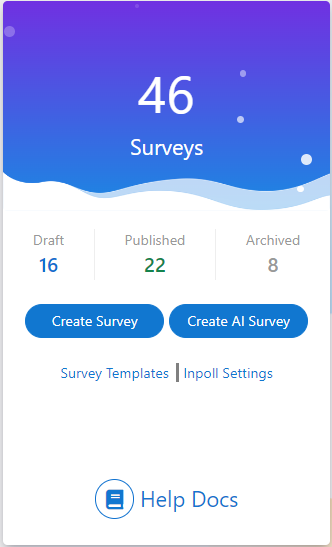
- Click the Survey Description box.
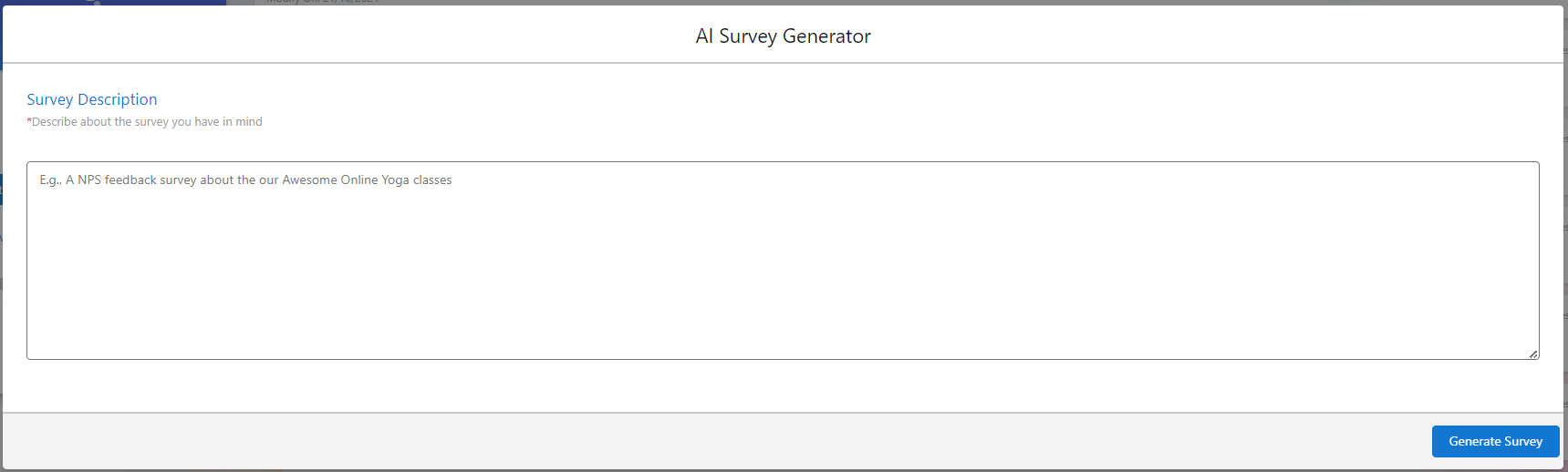
- Describe the survey you have in mind. The more detail you give, the better the survey fits.
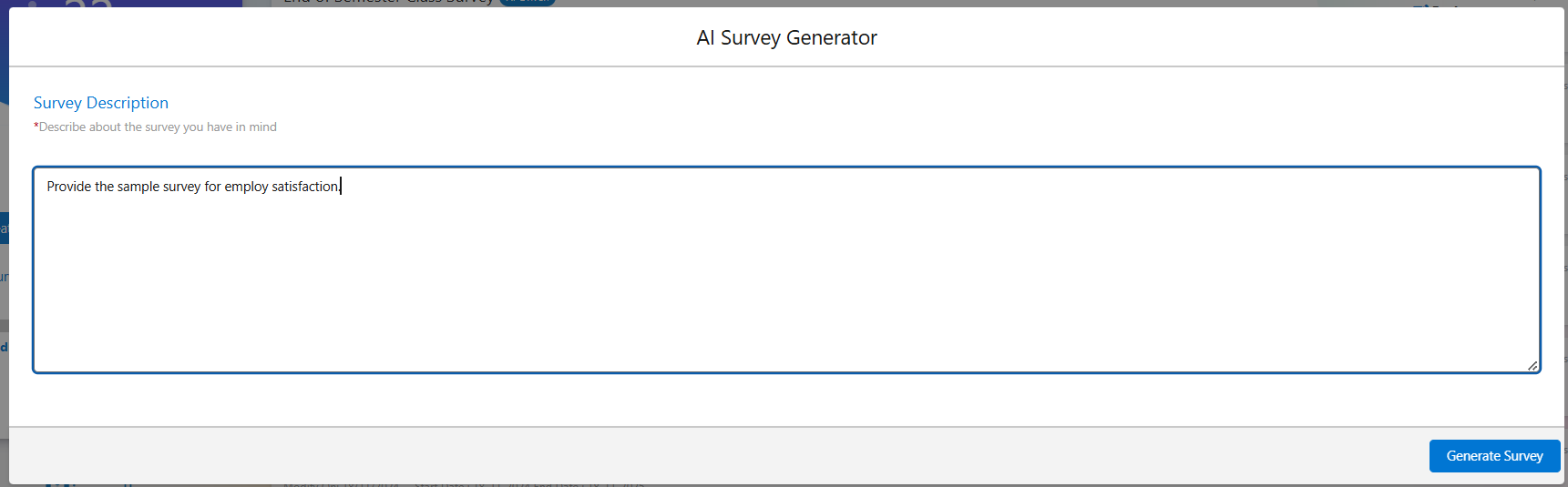
- Click Generate Survey. InPoll sends your description to OpenAI and then shows a preview of the survey.
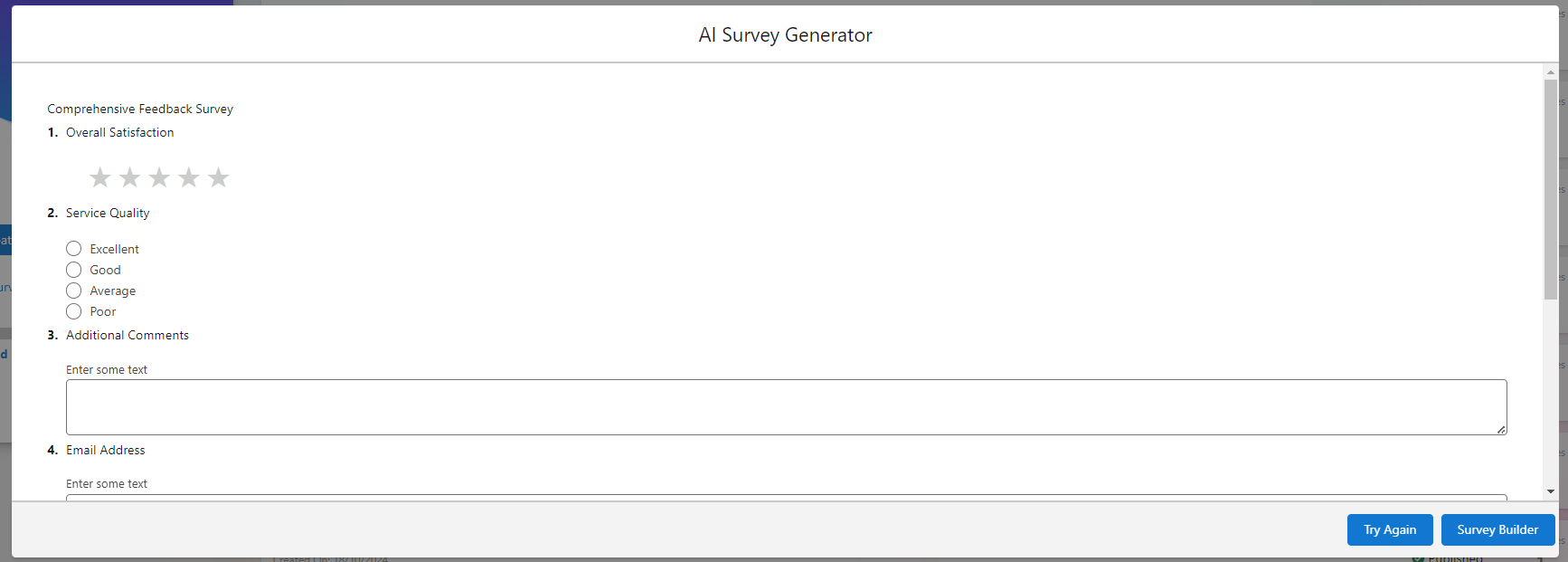
The preview depends on your description. For example:
- A general survey description gives a mix of multiple-choice, date picker, text input and rating questions.
- A description that asks for specific question types, such as date pickers and text areas, includes them.
- An NPS description gives an NPS (Net Promoter Score) survey, for example for a yoga class demo.
Refine the survey
If the preview does not meet your expectations, or if you missed something, refine it:
- Click Try Again. InPoll takes you back to the description box.
- Add more detail or change your description.
- Click Generate Survey again to create an updated survey.
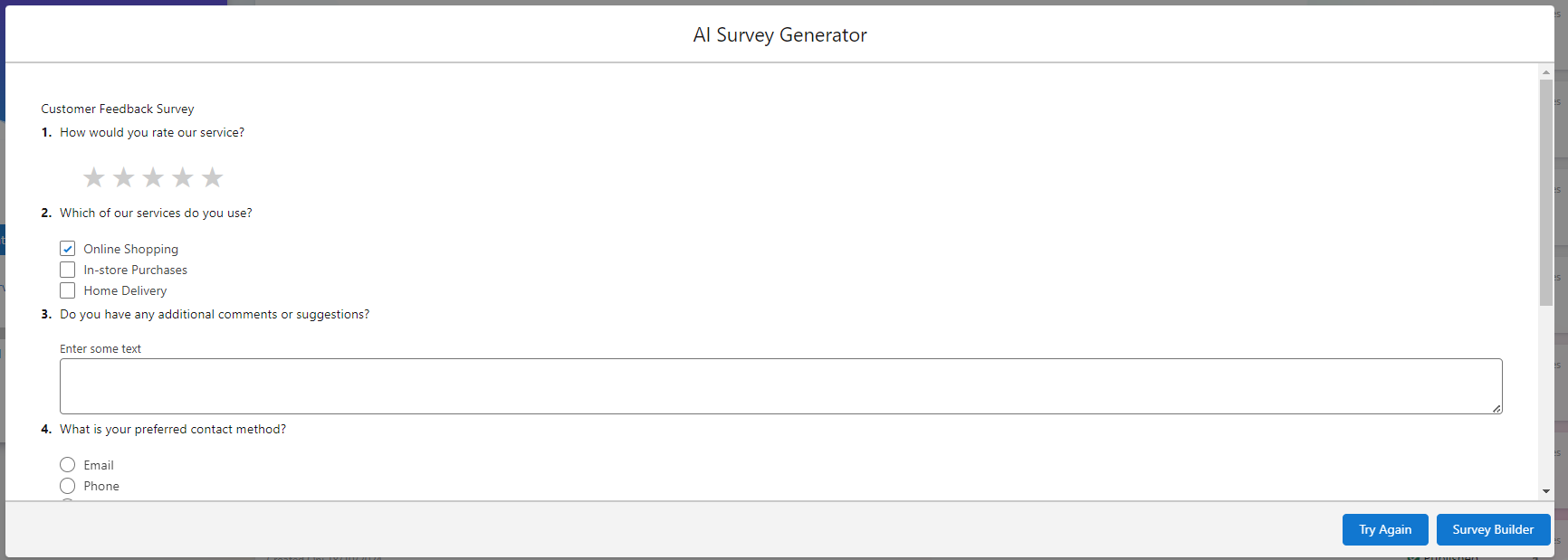
Open the survey in the builder
- When you are happy with the preview, click Survey Builder.
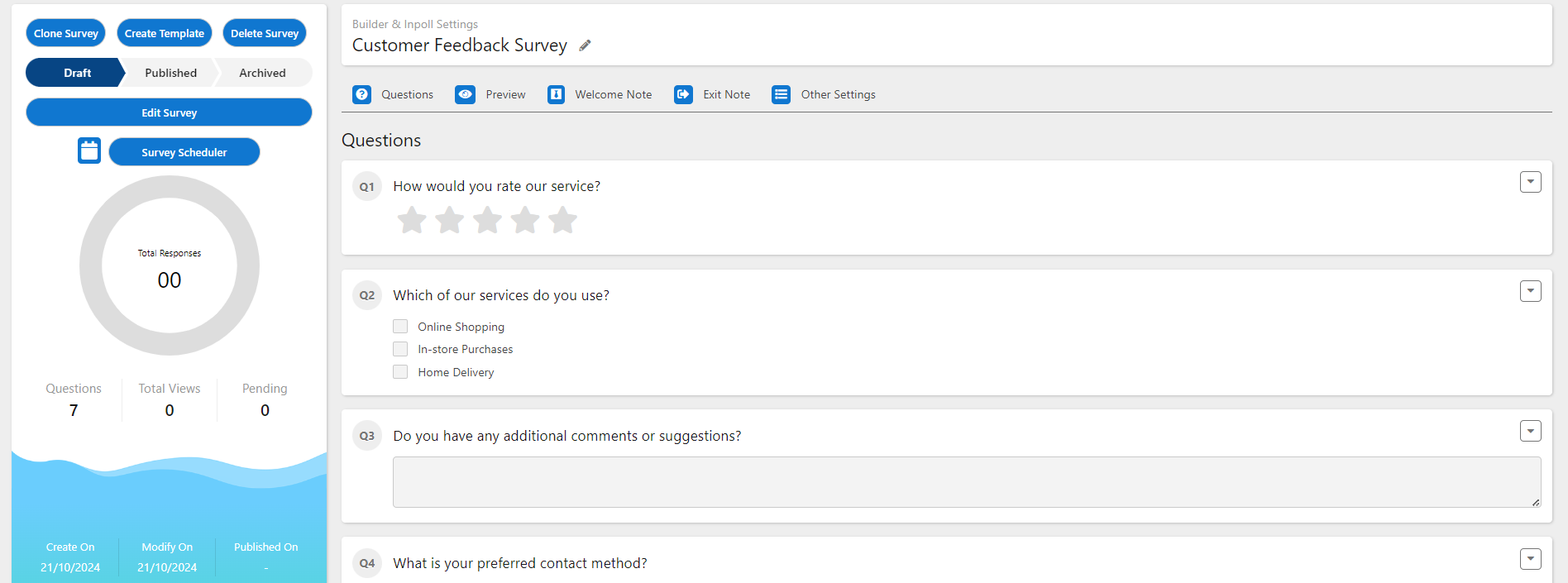
InPoll creates the survey as a draft and opens it in the survey builder. There you can edit the questions, preview the survey and finish it before you distribute it.
Tips
- The Survey Description is required. InPoll rejects a description that has only numbers or only special characters.
- Surveys that you create with AI show an AI-Driven label in the survey list.
- If InPoll shows "AI request failed", read the message. It tells you what to fix, for example a missing or rejected OpenAI key. See Set up AI with your OpenAI key.
Example descriptions
Detailed descriptions give more tailored surveys. For example:
- General survey: "Create a general survey with all different types of questions."
- Specific questions: "Include date picker and textarea type questions."
- NPS feedback: "Create an NPS feedback survey about a yoga class demo."