
Use this guide to add your own OpenAI API key so that the InPoll AI survey writer works. For admins.
InPoll is free. Its AI feature, the AI survey generator, is optional and uses your own OpenAI API key. You pay OpenAI directly for what you use, and Athenalogics never sees your key. If you do not add a key, the rest of InPoll works as normal.
This guide applies to InPoll 0.40 and later.
Before you start
- You need an OpenAI account with billing turned on.
Add your OpenAI key
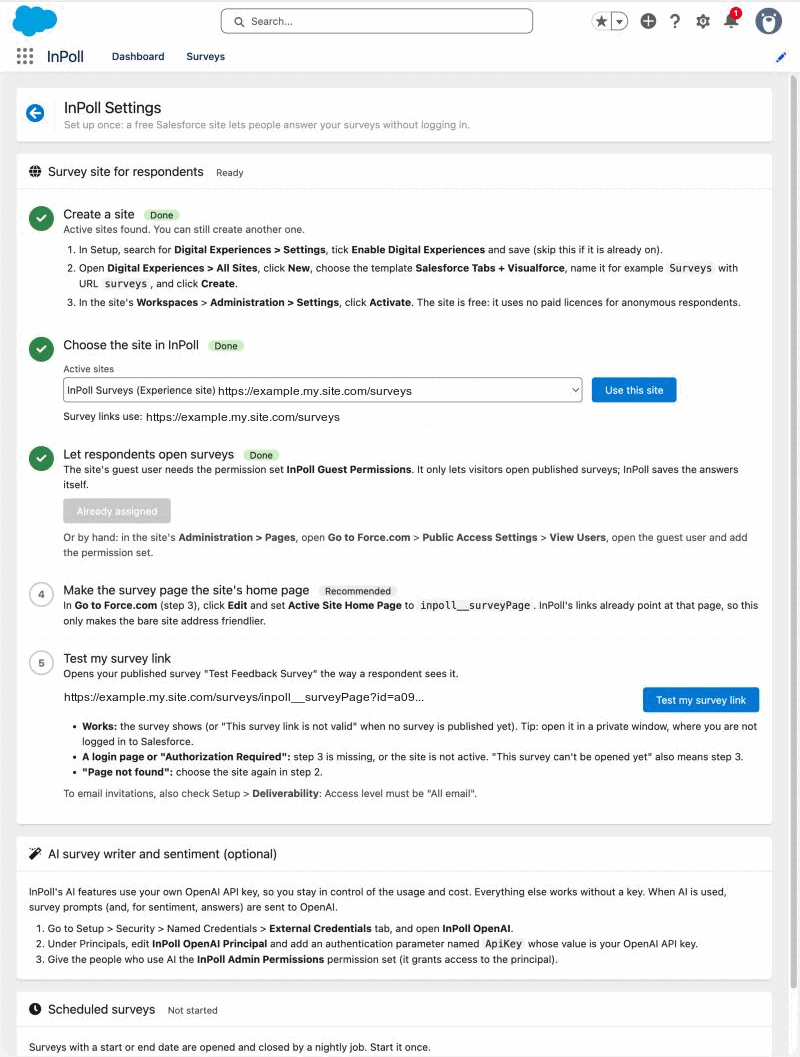
An admin does this once for your Salesforce org. InPoll Settings shows the same steps in its AI survey writer and sentiment (optional) card.
- Get an API key at platform.openai.com/api-keys.
- In Salesforce, go to Setup > Security > Named Credentials. You can also enter Named Credentials in the Quick Find box.
- Open the External Credentials tab.
- Select InPoll OpenAI.
- Under Principals, edit InPoll_OpenAI_Principal. InPoll Settings shows this name as InPoll OpenAI Principal.
- Add an authentication parameter named ApiKey.
- Paste your key as its value and save.
- Give the people who will use AI the InPoll Admin Permissions permission set. It grants use of that principal.
- Open InPoll, go to the Surveys tab and click Create with AI.
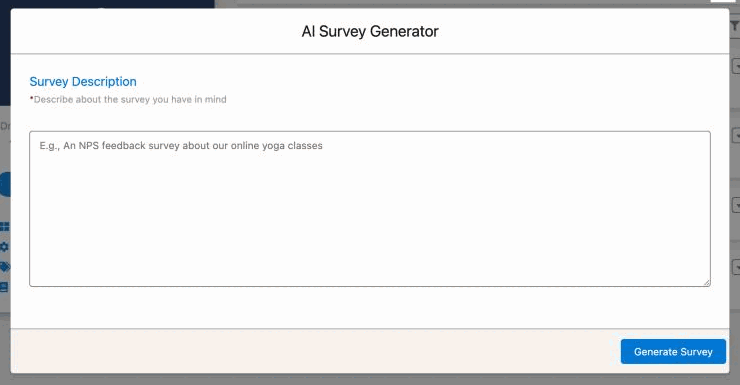
If something is not set up correctly, InPoll tells you what to fix.
What is sent to OpenAI
- When you use AI to create a survey, the survey description you type is sent to OpenAI to generate questions.
- Nothing is sent unless someone uses an AI feature.
- OpenAI's own terms and privacy policy apply to data sent to it.
Troubleshooting
- No key added: InPoll shows a message that AI features need your own OpenAI key and where to add it.
- Key rejected: check that the ApiKey value is correct and has not been revoked.
- Quota or rate limit reached: check billing and limits in your OpenAI account.
- Other errors: InPoll shows the error that OpenAI returned, including its HTTP code.