
Use this guide to rename a survey, edit its description and tags, and choose how questions are shown to respondents. For survey creators.
Edit the title, description and tags
- On the Surveys tab, click the survey to open it in the builder.
- Click the Survey Settings tab. Or click the edit icon next to the survey title.
- Change the Survey Title, the Description, or the tags in Add Tag For Survey.
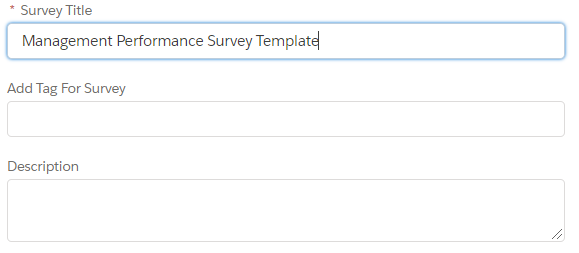
- Click Save Changes.
The title is required and can have up to 75 characters. The description can have up to 140.
Choose how questions are shown
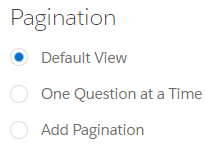
The Pagination setting controls how respondents see the questions and move through them.
There are three layouts: Default View, One Question at a Time and Add Pagination. Default View shows all the questions on one page, and respondents scroll to move between them. One Question at a Time shows a single question in the center of the screen, and respondents use Next and Previous to move between questions. This makes the survey faster to complete and helps respondents focus. Check the survey preview before you send it.
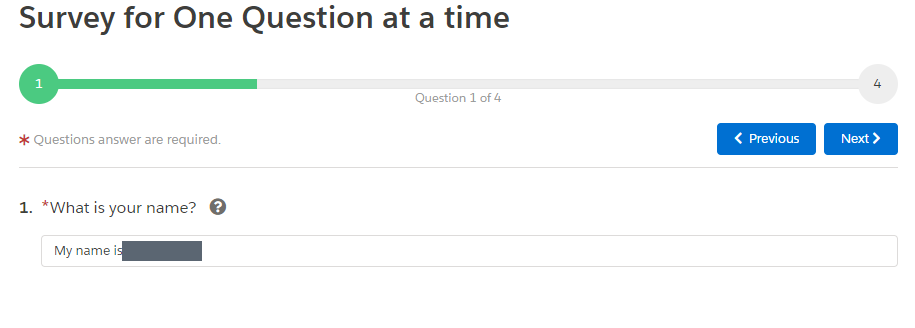
Show one question at a time
- Open the survey.
- Click the Survey Settings tab.
- In Pagination, select One Question at a Time.
- Click Save Changes.
Split questions into pages
Pagination separates the questions into pages that respondents move through in order, from the first page to the last. You can add pagination by section or by question. By Section shows one section on each page. By Question shows the number of questions you choose on each page.
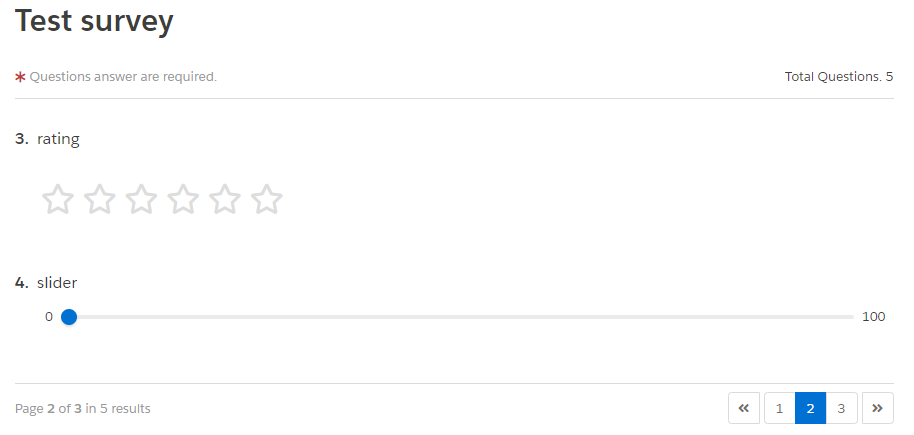
Add pagination by section
- Open the survey.
- Click the Survey Settings tab.
- In Pagination, select Add Pagination.
- Select By Section.
- Click Save Changes.
Add pagination by question
- Open the survey.
- Click the Survey Settings tab.
- In Pagination, select Add Pagination.
- Select By Question.
- Enter the number of questions to show on each page.
- Click Save Changes.
The number must be a whole number greater than zero. It cannot be greater than the total number of questions in the survey.