
Use this guide to greet respondents before a survey and to show a message or link after they submit it. For survey creators.
Add a welcome note
The welcome note is the first thing respondents see. Use it to explain the purpose of the survey, give information, or thank people for taking part.
- On the Surveys tab, click the survey to open it in the builder.
- Click the Welcome Note tab.
- Enter your message in the editor.
- Format the text with the toolbar: font, size, bold, italic, underline, lists, indent and outdent.
- Turn on Show Welcome Note.
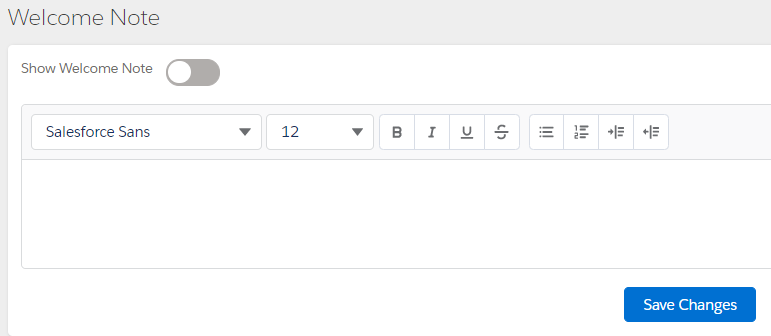
- Click Save Changes.
Respondents click Start Survey to begin. Turn off Show Welcome Note to hide the note. Respondents then go straight to the questions.
If the note is empty, InPoll shows Please Enter Welcome Message when you save.
Set an exit note or exit link
Choose what respondents see after they submit the survey:
- Exit Note: a formatted message.
- Exit Link: a link that respondents can click.
- On the Surveys tab, click the survey to open it in the builder.
- Click the Exit Note tab.
- Select Exit Note or Exit Link.
- Enter the exit message, or enter the exit link URL.
- For an exit note, format the text with the toolbar.
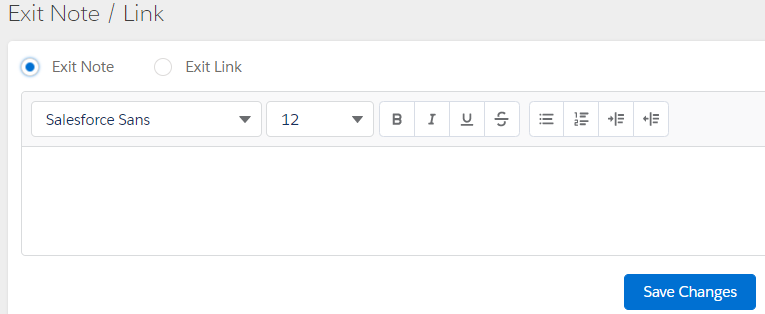
- Click Save Changes.
Good to know
- If an exit link doesn't start with http:// or https://, InPoll adds https://. If the URL is not valid, InPoll shows Please enter valid url.
- An empty exit note shows the error Exit note can not be empty.
- If you don't set an exit note or link, respondents see a default thank-you message.
- Before you send the survey, preview it to check the formatting, the welcome note and the exit note.