
Use this guide to email a personal survey link to chosen people and follow who opened it and who answered. For admins and survey creators.
Before you start
- Publish the survey. See Publish a survey.
- Set up the survey site. See Set up the survey site (guided).
- In Setup, open Deliverability and set Access level to All email. Otherwise Salesforce does not send the emails and the invitations show as Failed.
Choose the people
- Open the survey and click Send in the top bar.
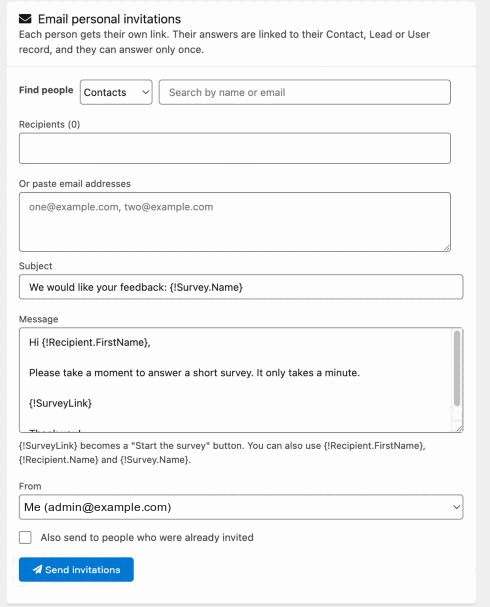
- In the Email personal invitations card, under Find people, choose Contacts, Leads or Users.
- Type at least two letters of a name or email address. Matching people with an email address are listed.
- Click Add next to each person you want to invite. They appear under Recipients.
- To remove someone, click the remove button on their name under Recipients.
- To invite people who are not in Salesforce, or to add many at once, paste their email addresses into Or paste email addresses. Separate them with commas, semicolons, spaces or new lines.
Write the email
InPoll fills Subject and Message with a short default text. Edit them if you like.
- In Subject, change the subject line. The default is "We would like your feedback: " followed by the survey name.
- In Message, change the text. Keep {!SurveyLink} where you want the Start the survey button to appear. If you remove it, InPoll adds the button at the end of the email.
You can use these merge fields in Subject and Message:
Merge field | What it becomes |
|---|---|
{!SurveyLink} | A Start the survey button with the person's own link. In the plain-text version of the email, the link itself. |
{!Recipient.FirstName} | The first name of the person. For a pasted address it is empty. |
{!Recipient.Name} | The full name of the person. For a pasted address it is empty. |
{!Survey.Name} | The name of the survey. |
Send the invitations
- In From, choose who the email comes from. The first choice is you, with your email address. Organization-wide email addresses of your org are also listed.
- Leave Also send to people who were already invited unticked. Tick it only when you want to send the survey again to someone who already has an invitation.
- Click Send invitations.
A line under the button tells you what happened, for example "3 sent", "1 skipped (already invited)" or "1 failed". For each failure it adds the reason. When nothing could be sent, it says "Nothing sent".
InPoll sends to at most 200 people at a time. A person who was already invited is skipped unless you tick the resend box. Emails to Contacts and Leads are also logged as activities on their records.
Track the invitations
The Invitations card lists the latest 100 invitations of the survey. The line above the table counts them, for example "6 invitations · 5 responded · 1 waiting". Failed invitations are counted too.
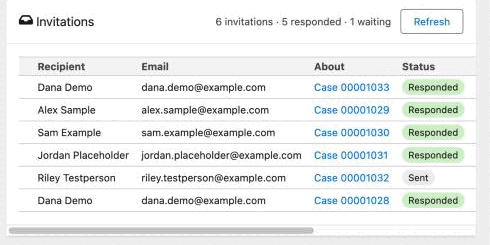
Click Refresh to reload the table after people have answered. The About column shows the record the invitation is about, such as a Case, when the invitation came from a Flow.
Status | What it means |
|---|---|
Sent | InPoll created the invitation and the email was handed to Salesforce. |
Opened | The person opened their personal link but has not submitted the survey. |
Responded | The person submitted the survey. The Responded column shows when. |
Failed | The email could not be sent. The reason is shown under the status, for example that email deliverability is off or that the daily email allowance of the org is used up. |
To see what a person answered, open the survey's Summary page. See View the summary and responses.
Fix a failed invitation
- Read the reason under Failed.
- If the reason is email deliverability, open Setup > Deliverability and set Access level to All email.
- Return to the Send screen, add the person again and click Send invitations. A failed invitation does not count as already invited.
Good to know
- Each personal link can be answered once. If the person opens it again after answering, they see a message that they have already answered. Their answers are not shown.
- Each answer is linked to the Contact, Lead or User who got the link. Answers from a pasted address are tracked by that email address.
- Do not forward the email if you need to know who answered. Anyone with the link answers as the person it was sent to.
- To switch off the public link and accept only personal invitations, tick Personal invitations only in the Share a link card. See Send a survey.