
Use this guide to report on CSAT, NPS and response rate with the ready-made InPoll reports or your own. For admins and survey creators.
Before you start
- Send a survey and collect answers. See Send a survey.
- Scores come from a rating question. A survey with no rating question has no CSAT or NPS scores.
- To run reports, you need the Salesforce permission Run Reports. To build your own, you also need Create and Customize Reports. The InPoll Admin Permissions permission set gives read access to InPoll records, but not these report permissions.
What InPoll stores on each response
When a respondent submits a survey, InPoll saves these fields on the Survey Response record. You can use them in any Salesforce report.
Field | What it holds |
|---|---|
CSAT Score | The answer to the first rating question of a survey that is not an NPS survey, for example 4 on a scale of 1 to 5. |
CSAT Scale | The highest possible CSAT Score, which is the number of rating options. |
CSAT Satisfied | Checked when the CSAT Score is at least 80 percent of the CSAT Scale, for example 4 or 5 out of 5. |
NPS Score | The answer to the first rating question of an NPS survey, on a scale of 0 to 10. |
NPS Category | Promoter, Passive or Detractor. InPoll uses the thresholds set on the question. If the question has none, 0 to 6 is Detractor, 7 and 8 is Passive, and 9 and 10 is Promoter. |
NPS Value | 100 for a Promoter, 0 for a Passive and -100 for a Detractor. Empty when there is no NPS Category. |
Contact, Lead | The person who answered. Filled when the answer came from a personal invitation. |
Case, Account | The Case and the Account the answer is about. Filled when the answer came from a personal invitation. |
Invitation | The invitation the answer came from. Empty for answers from the public link. |
The Survey type of the survey decides which scores are filled. NPS surveys fill the NPS fields. Other surveys fill the CSAT fields.
Answers from the public survey link are anonymous. They have scores, but no Contact, Lead, Case, Account or Invitation.
How CSAT and NPS are calculated
CSAT
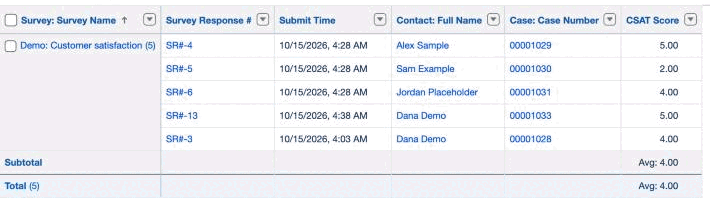
The average CSAT is the average of CSAT Score. The share of satisfied customers is the share of responses with CSAT Satisfied checked.
Compare averages only between surveys that use the same rating scale. The Dashboard tab compares surveys with different scales out of 5.
NPS
The Net Promoter Score is the share of promoters minus the share of detractors. It runs from -100 to +100.
Because NPS Value is 100, 0 or -100, the average of NPS Value for a group of responses is exactly the NPS of that group. For example, 10 answers with 6 promoters, 2 passives and 2 detractors give (6 x 100 + 2 x 0 + 2 x -100) / 10 = 40. That is 60 percent promoters minus 20 percent detractors.
The InPoll screens round the NPS to a whole number. A report can show decimals.
The four ready-made reports
InPoll adds the folder InPoll Reports to Salesforce with four reports. Each report starts with the last 120 days.
Report | What it shows | Report type |
|---|---|---|
CSAT by survey | The average CSAT Score for each survey. Under each survey are its answers with the respondent, Contact, Case and date submitted. Only answers with a CSAT Score are included. | InPoll Survey Responses |
NPS by survey | Each survey, split by NPS Category. The average of NPS Value is the Net Promoter Score. Only answers with an NPS Category are included. | InPoll Survey Responses |
Case survey responses | A list of answers about Cases: Case number, subject and owner, Contact, Account, survey, CSAT Score, NPS Score and date submitted. | InPoll Survey Responses |
Invitations and response rate | The invitations of each survey, grouped by status: Sent, Opened, Responded or Failed. It shows the email address, Contact, Case, sent date and responded date. | InPoll Survey Invitations |
To work out a response rate from the last report, divide the number of Responded invitations by the number of Sent, Opened and Responded invitations together. The Analytics and Dashboard tabs leave out Failed invitations in the same way.
Run a report
- Open the Reports tab in Salesforce. If you do not see it, find Reports in the App Launcher.
- Find the folder InPoll Reports and open it. You can use the search box or All Folders.
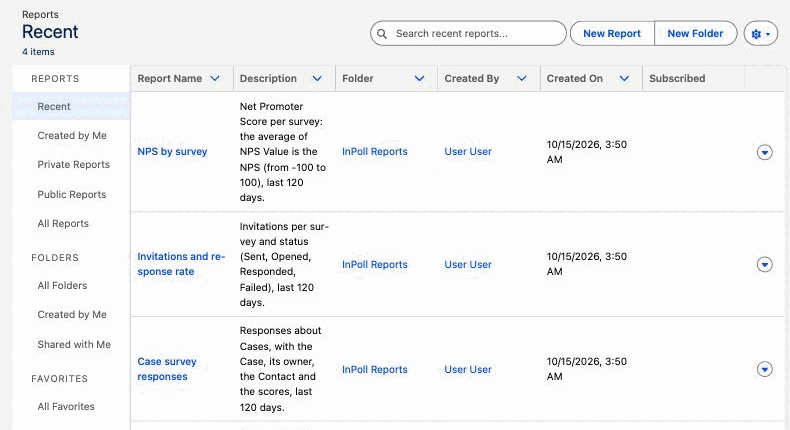
- Click the name of a report. The report runs and shows the results.
- To change the date range, click Filters, change the filter on the date field, and apply it.
- To keep your changes, click the arrow next to Edit, choose Save As and pick one of your own folders. The InPoll Reports folder is read-only.
Create your own report
Start from the InPoll report types to answer your own questions, for example the average CSAT by Account or the NPS by Case owner.
- Open the Reports tab and click New Report.
- In the Choose Report Type window, search for InPoll. The two report types are listed under Other Reports.
- Choose InPoll Survey Responses for answers and scores, or InPoll Survey Invitations for invitations and response rate.
- Click Continue.
- Add the columns you need. For CSAT, add CSAT Score. For NPS, add NPS Value.
- Group the rows, for example by Survey, Account Name or Case Owner.
- Summarize the score column. For CSAT, choose Average of CSAT Score. For NPS, choose Average of NPS Value.
- Add filters, for example to include only one survey or only one NPS Category. Then save and run the report.
The report types give you these fields.
- InPoll Survey Responses: survey name and type, status, date submitted, respondent, the CSAT and NPS fields, Contact (name and email), Lead, Case (number, subject and owner), Account and Invitation.
- InPoll Survey Invitations: survey, status, email address, Contact, Lead, user, Case, Account, sent, opened and responded dates, the CSAT Score and NPS Category of the answer, and the error text of a failed invitation.
Show survey responses on a Case, Contact or Account
Admins can add the related list InPoll Survey Responses to the page layout of Case, Contact, Account or Lead. People then see each answer, with its scores, on the record it is about.
- In Setup, open Object Manager and click Case. For another object, click Contact, Account or Lead.
- Click Page Layouts and open the layout your team uses.
- In the layout editor, click Related Lists in the palette.
- Drag InPoll Survey Responses into the Related Lists section.
- To choose the columns of the list, click the wrench icon on the related list.
- Click Save. Repeat for each layout you use.
If your Lightning record page lists related lists one by one, open the page with Edit Page and add a Related List - Single component for InPoll Survey Responses.
Good to know
- Case survey responses lists only answers that came from a personal invitation about a Case.
- The reports start with the last 120 days. The summary row on the Analytics tab counts all responses so far.
- To copy a score onto the Case itself, use Response Mapping. See the guides under Write Answers Back.