
Use this guide to find specific survey responses with the Search box and filters, and to clear the filters. For survey creators.
Before you start
- Open the Responses tab of the survey. See View the summary and responses.
Search responses
Type a keyword in the Search box above the response list, such as the name of a respondent, a date or a status. The list shows only the matching responses.
Filter responses
Filters let you focus on part of your results. For example, you can show only the responses that gave a certain answer to a question, only completed responses, or only unread responses.
- Open InPoll and go to the Surveys tab.
- Select the survey.
- Click Summary.
- Click the Responses tab.
- Click the filter icon next to the Search box. The Filter Survey Response window opens.
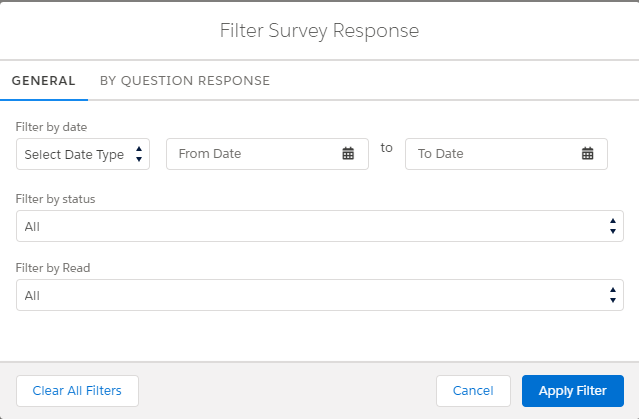
- To filter by date, status or read state, use the General tab.
- To filter by an answer, click the By Question Response tab. Select a question, then a response.
- Click Apply Filter.
The list shows only the matching responses. The active filters appear next to Filter By: above the list.
Filter types
Filter | How it works |
|---|---|
Date | Under Filter by date, select Submit Date in Select Date Type. Then enter a From Date and a To Date. The list shows the responses submitted between the two dates.  |
Completed | Under Filter by status, select Completed. The list shows the responses where the respondent answered every question. 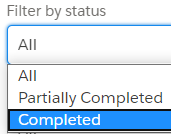 |
Partially Completed | Under Filter by status, select Partially Completed. The list shows the responses where the respondent did not answer every question. |
Read | Under Filter by Read, select Read. The list shows the responses that have been opened. 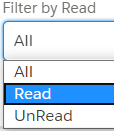 |
Unread | Under Filter by Read, select UnRead. The list shows the responses that have not been opened yet, so you can find the ones you have not reviewed. |
Question response | On the By Question Response tab, select a question and one of its responses. The list shows the responses that gave that answer. 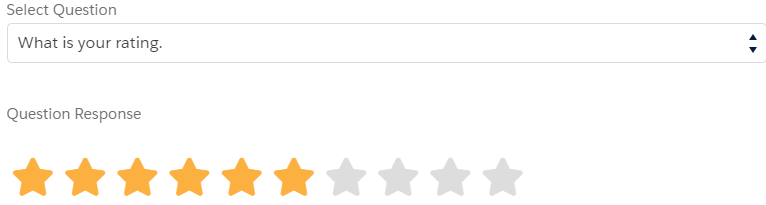 |
The status list also has Not Submited. It shows the pending responses that have not been submitted.
Clear filters
- Open InPoll and go to the Surveys tab.
- Select the survey.
- Click Summary.
- Click the Responses tab.
- Click the filter icon next to the Search box.
- Click Clear All Filters.
InPoll removes all filters and shows every response again. You can also click Clear All next to Filter By: above the list.