
Use this guide to view the responses to a survey and read its summary, including who answered, their scores and response statuses. For survey creators.
View the responses
The Responses tab lists every response to a survey. A response is one submission of the survey, whether the respondent answered all questions or only some. InPoll records a response when the respondent clicks Submit.
- Open InPoll and go to the Surveys tab.
- Select the survey.
- Click Summary.
- Click the Responses tab.
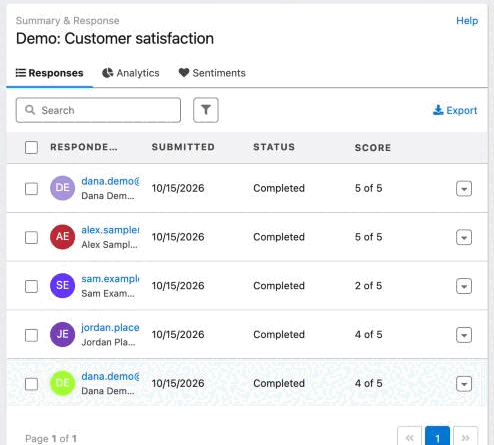
Unread responses have a white background. Read responses have a light grey background. A response becomes read when you open it.
To find specific responses, use the Search box and the filters. See Search and filter responses.
Read the response list
Column | What it shows |
|---|---|
Respondent | The name of the respondent. For an answer from a personal invitation, a second line says who and what the answer is about, for example Dana Demo · Case 00001028 · Acme Demo Ltd. It shows the Contact or Lead, then the Case, then the Account, as far as they are known. |
Submitted | The date of the submission, in your own date format and time zone. |
Status | Completed, Partially Completed or Pending. See Response statuses. |
Score | The score of the answer, for example 4 of 5 for a CSAT rating or 9 · Promoter for an NPS rating. This column shows only when the survey has scores. |
Answers from the public survey link are anonymous, so they have no second line under the respondent. To report on the scores, see Reports: CSAT, NPS and response rate.
Response statuses
Each response in the list has one of these statuses.
Status | Description |
|---|---|
Completed | The respondent answered every question and submitted the survey. |
Partially Completed | The respondent answered some questions but not all. The status shows how many, for example Partially Completed (3/5) for 3 answered questions out of 5. |
Pending | The respondent opened the survey but has not submitted any answers. The status filter calls this Not Submited. |
A respondent may leave questions unanswered because they ran out of time, lost interest or were disqualified from certain questions. To see only one status, use the status filter.
Open a single response
To see the answers of one respondent, click the name in the list. Or click the arrow (Show More) at the end of the row, then click View.
A window opens with each question of the survey and its answer. Star rating questions show the chosen number of stars. The top of the window shows the respondent, status and date of submission. The Action menu in the window has Mark as Unread (for a response that is read), Print and Delete.
Work with several responses
Select the checkbox of each response you want. An Action list appears. It has Export Selected, Mark as Read, Mark as Unread and Delete Selected. Choose one and click Apply.
Copy the survey link
The left panel of the Summary page has a Copy link button for a published survey. It copies the public survey link, the same link as on the Send screen.
- Open the Summary page of a published survey.
- In the left panel, click Copy link.
InPoll shows "Survey link copied." You can then paste the link into an email or a web page.
If InPoll cannot copy the link, it tells you why. For example, no survey site is set up yet. Then open InPoll Settings and finish the survey site setup. Or the survey takes personal invitations only and has no public link. Then send invitations from the Send screen.
Read the summary panel
The panel on the left of the Summary page summarizes the responses. A donut chart shows the share of complete and partial responses.
Complete and partial responses | The donut chart shows the count and percentage of submitted responses that are complete and partial. |
|---|---|
Questions | The number of questions in the survey, not counting page breaks. |
Total Views | The number of responses recorded for the survey, including pending ones. |
Pending | The number of responses that have not been submitted. |
The headline numbers, such as the response rate, the average CSAT and the Net Promoter Score, are on the Analytics tab. See View survey analytics.