
Use this guide to set up the free survey site where people answer your InPoll surveys without logging in to Salesforce. For admins.
Before you start
- InPoll is installed. See Install InPoll.
- You have the InPoll Admin Permissions permission set. See Give admins access to InPoll.
- You can open Setup and create sites in your org.
You do this once for your org. InPoll Settings checks each step and shows Done or To do, so you can see what is left. The site is free: it uses no paid licenses for anonymous respondents.
Open InPoll Settings
- Open the App Launcher and choose InPoll.
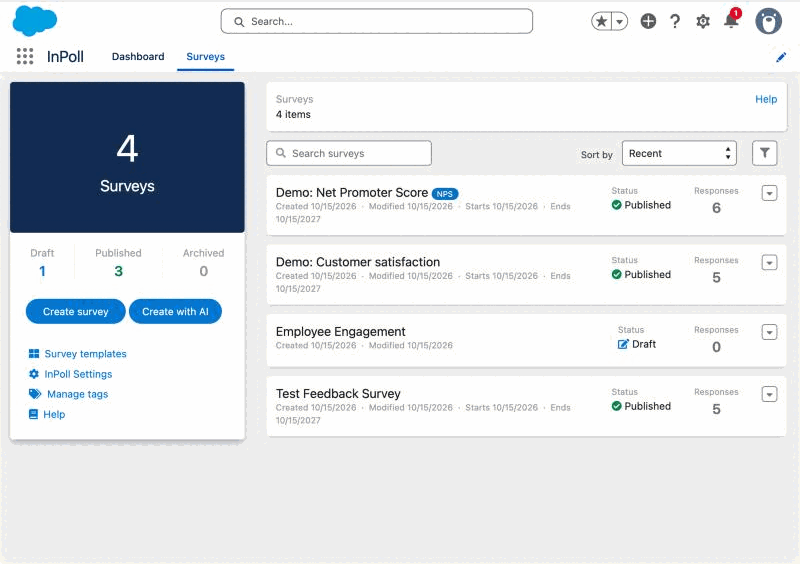
- Click the Surveys tab.
- In the left panel, click InPoll Settings.
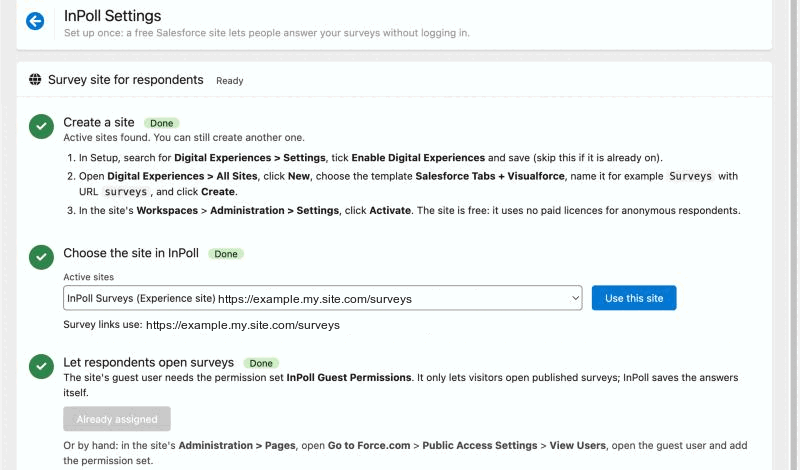
The first card is Survey site for respondents. Next to its title, InPoll shows Ready or Not finished.
Step 1: Create a site
Skip this step if your org already has an active site that you want to use. For more detail, see Create the Experience site for surveys.
- In Setup, enter Digital Experiences in the Quick Find box and click Settings.
- Tick Enable Digital Experiences, then click Save. Skip this if it is already on.
- Go to Digital Experiences > All Sites and click New.
- Choose the template Salesforce Tabs + Visualforce.
- Name the site Surveys and enter surveys as the URL.
- Click Create.
- In the new site, open Workspaces, then Administration > Settings.
- Click Activate.
Reload InPoll Settings. Step 1 shows Done when an active site exists.
Step 2: Choose the site in InPoll
- In InPoll Settings, open the Active sites list. Each site shows its label, its type and its address.
- Choose your site.
- Click Use this site.
InPoll saves the site and shows the line "Survey links use:" with the address. Step 2 shows Done. This can take up to a minute, and the page checks again by itself.
- If the list says "No active site yet (see step 1)", create and activate a site first. Use this site stays off until an active site exists.
- If InPoll says the saved site is not active any more, choose an active site.
Step 3: Let respondents open surveys
The site's guest user needs the InPoll Guest Permissions permission set. It only lets visitors open published surveys. InPoll saves the answers itself.
- Click Assign it for me.
- Wait for the message "Done: respondents on this site can now open InPoll surveys."
Step 3 shows Done and the button changes to Already assigned. If the button is off, or InPoll shows an error, assign the permission set by hand. See Let respondents open surveys (guest access).
Step 4: Set the site home page (recommended)
InPoll links already point to the survey page, so this step only makes the bare site address friendlier. InPoll does not check it.
- In the site, open Administration > Pages and click Go to Force.com.
- Click Edit.
- Set Active Site Home Page to inpoll__surveyPage.
- Click Save.
Step 5: Test my survey link
- Click Test my survey link.
- Check the page that opens in a new tab. For the most accurate test, copy the link from the box next to the button and open it in a private window, where you are not logged in to Salesforce.
If a survey is published, the link opens it. If not, it opens the survey page itself. Until steps 1 to 3 are done, the button is off and the page says "Finish steps 1 to 3 first."
The survey | The site works. If no survey is published yet, you see "This survey link is not valid", which also means the site works. |
|---|---|
A login page, or "Authorization Required" | Step 3 is missing, or the site is not active. |
"Page not found" | Choose the site again in step 2. |
What Ready means
Ready appears next to the card title when steps 1, 2 and 3 are done: an active site exists, you chose it, and its guest user has the guest permission set. Until then the card shows Not finished. Steps 4 and 5 are not checked.
If respondents see "This survey can't be opened yet"
A respondent who opens a survey link before step 3 is done sees: "This survey can't be opened yet: the survey site's set-up is not finished." The message tells the sender to open InPoll Settings and finish step 3. Click Assign it for me, then send the link again or ask the respondent to reload.
Good to know
- Surveys sent by email also need Setup > Deliverability. Set Access level to All email.
- Copy link buttons and QR codes use the site you chose here, so choose it before you share a survey.