
Use this guide to add a help tip, a hover-over hint that explains a question to respondents. For survey creators.
A help tip is short text that respondents see when they hover over a question mark icon next to the question. Use it for definitions or extra guidance. It stays hidden until a respondent needs it.
Add a help tip
- On the Surveys tab, click the survey to open it in the builder.
- Click the Questions tab.
- Click Add New Question. Or click Actions on an existing question, then Edit.
- In Advanced Settings, select Show Help Tip.
- In Write help text, enter the tip.
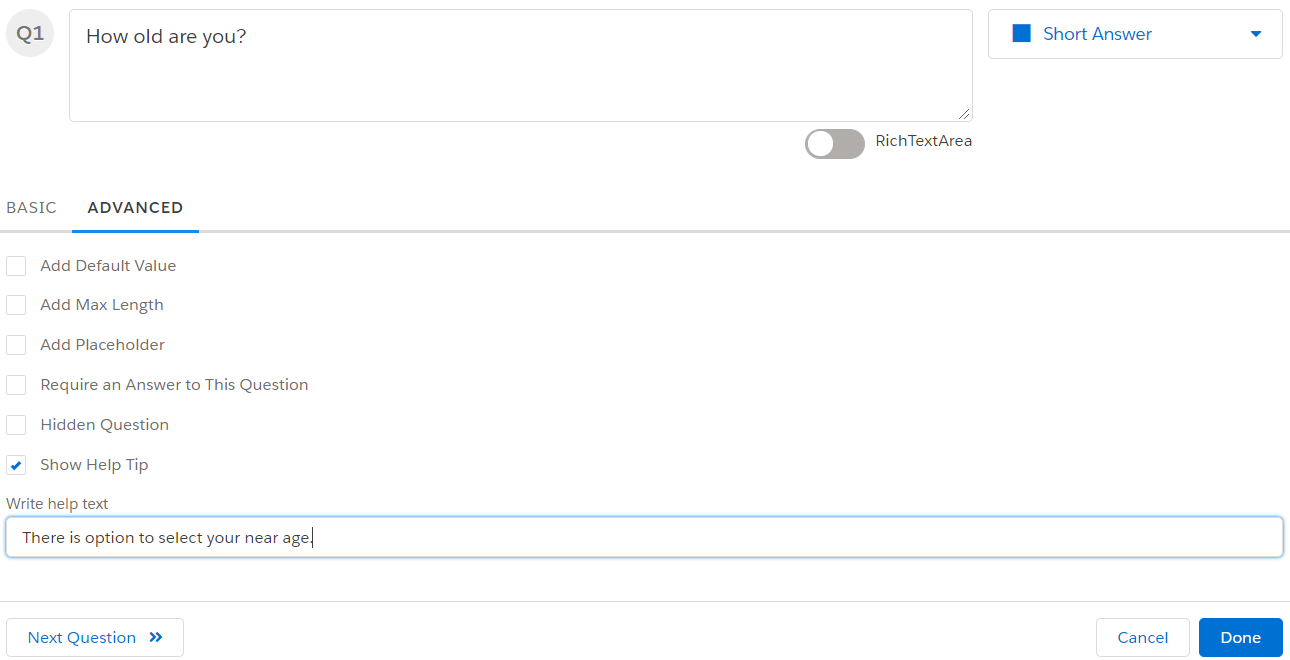
- Click Done.
Good to know
- The tip appears as a tooltip when a respondent hovers over the help icon next to the question.
- A help tip can have up to 100 characters. If you select Show Help Tip and leave the text empty, InPoll asks you to enter it.
- You can't change questions in a published survey that already has responses.
Preview the survey to check your questions, formatting and logic before you send it. Responses aren't recorded when you preview.