
Use this guide to learn what InPoll does and where to find its main features. For admins and survey creators.
What InPoll does
InPoll is a free Salesforce survey app. You create surveys, send them to customers, and review the responses, all inside your Salesforce org.
You can send a survey with a public link or a QR code, email personal invitations from the Send screen, or send it automatically from any Salesforce Flow. Each answer from a personal invitation is linked to the Contact, Lead or User, the Case and the Account it came from.
InPoll can also write answers back to Salesforce. With Response Mapping you can create a record, update the record the survey was about, or update the person who answered.
Key features
- Built for Salesforce: create surveys, collect feedback and review responses inside your Salesforce org.
- Question types: multiple choice, checkboxes, dropdown, short answer, paragraph, rating, slider, date picker and section.
- Customization: format question text, add welcome and exit notes, and choose how questions are paged.
- Sending: public link, QR code, personal email invitations with tracking, and the Send InPoll Survey action for Flow.
- Write-back: put answers into Salesforce records, with a log of what was written.
- Scores and analytics: CSAT and NPS are stored on each response and shown in charts and in four ready-made reports.
Where to find each feature
Design and manage
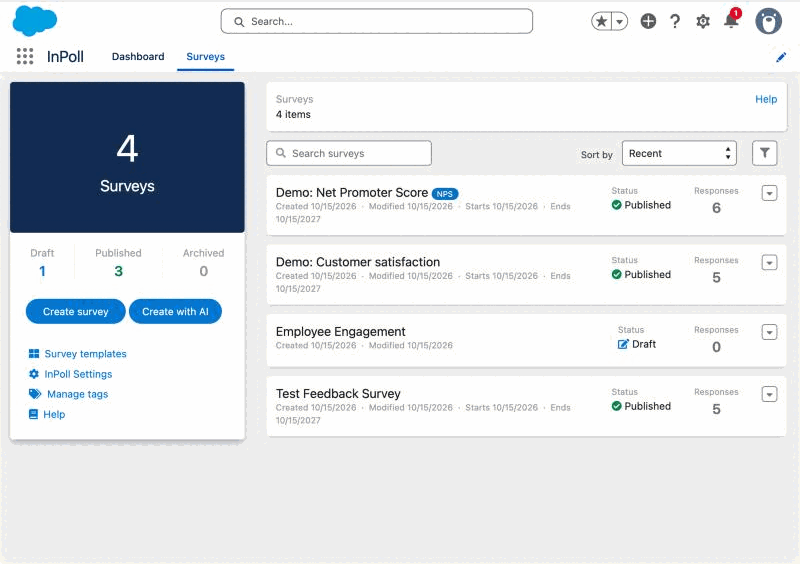
Create surveys, and edit, view or delete them on the Surveys tab. You can also clone a survey and create templates.
Builder
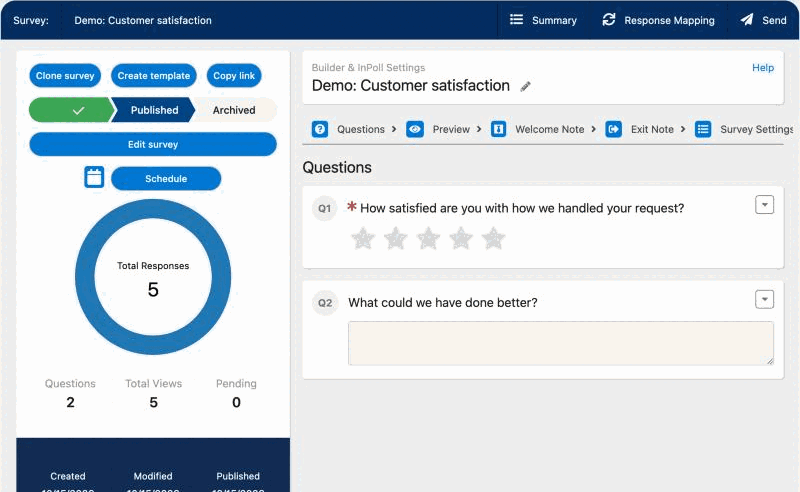
Add questions of different types, and use Build Logic to send respondents to specific questions based on their answers.
Send
After you publish a survey, the Send screen lets you share a public link, download a QR code, and email personal invitations. It also shows who was invited and whether they opened and answered the survey.
To send automatically, for example when a Case closes, add the Send InPoll Survey action to a Flow. See Send a survey and Send a survey from any Flow.
Response Mapping
Response Mapping writes answers to Salesforce. You choose to create a new record, update the record the survey was about, or update the person who answered. Then you pick a field for each answer. See Response mapping.
Responses
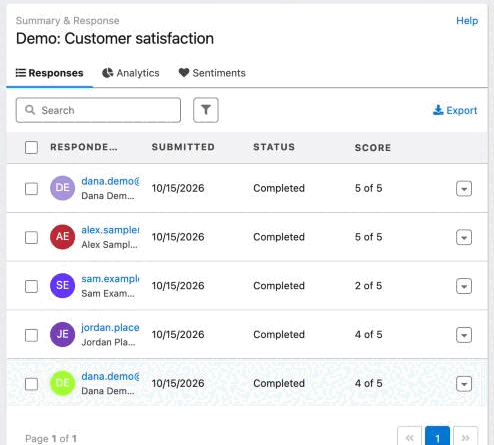
The Summary page lists the responses and summarizes them. The panel on the left shows survey details and counts.
On the right, the Responses tab lists the responses with the respondent, the record they answered about and the score, with search, filters and export. The Analytics tab shows the headline numbers and the analysis by question and by date.
Analytics and reports
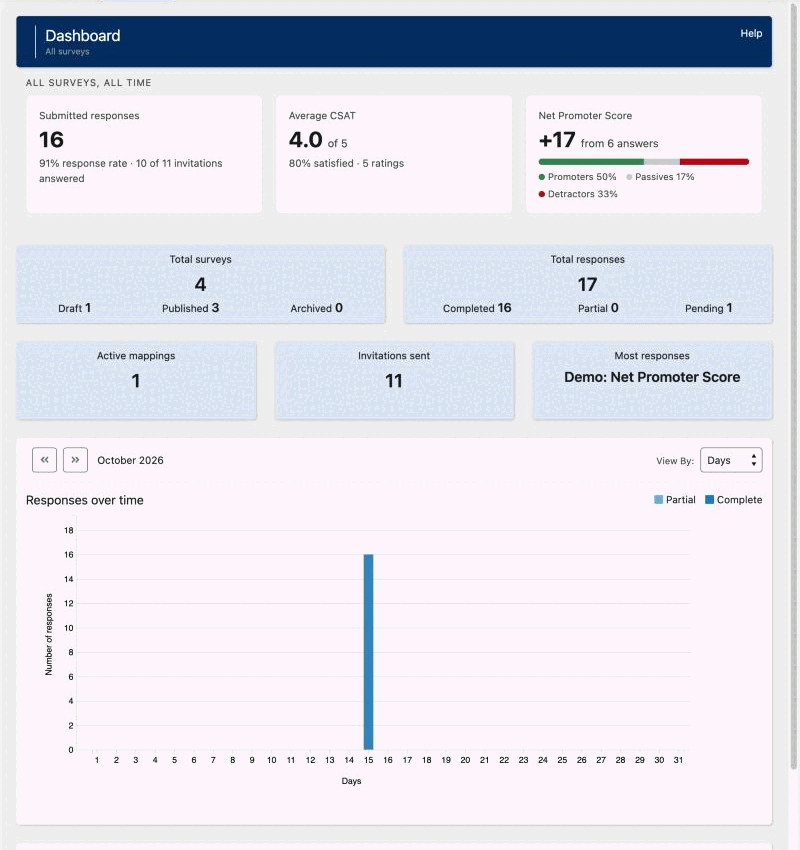
Charts show the responses by question and by date. The Dashboard tab gives an overview across all your surveys. In Salesforce Reports, the InPoll Reports folder has four ready-made reports. See Reports: CSAT, NPS and response rate.
Set up
InPoll Settings has a guided set-up for the survey site that respondents use. See Set up the survey site (guided).