
Use this guide to add questions to a survey, change them later, and manage their answer choices. For survey creators.
Before you start
- Create a survey and give it a title. See Create a survey.
- Keep the survey in Draft. In a published or archived survey, you cannot add, duplicate, delete or reorder questions.
Add a question
- Open the survey in the builder.
- Click the Questions tab.
- Click Add New Question.

- Enter the question text.
- To change the question type, click the question type button to the right of the question text and select a type. It shows Multiple Choice by default.
- Under the Basic tab, enter the answer choices.
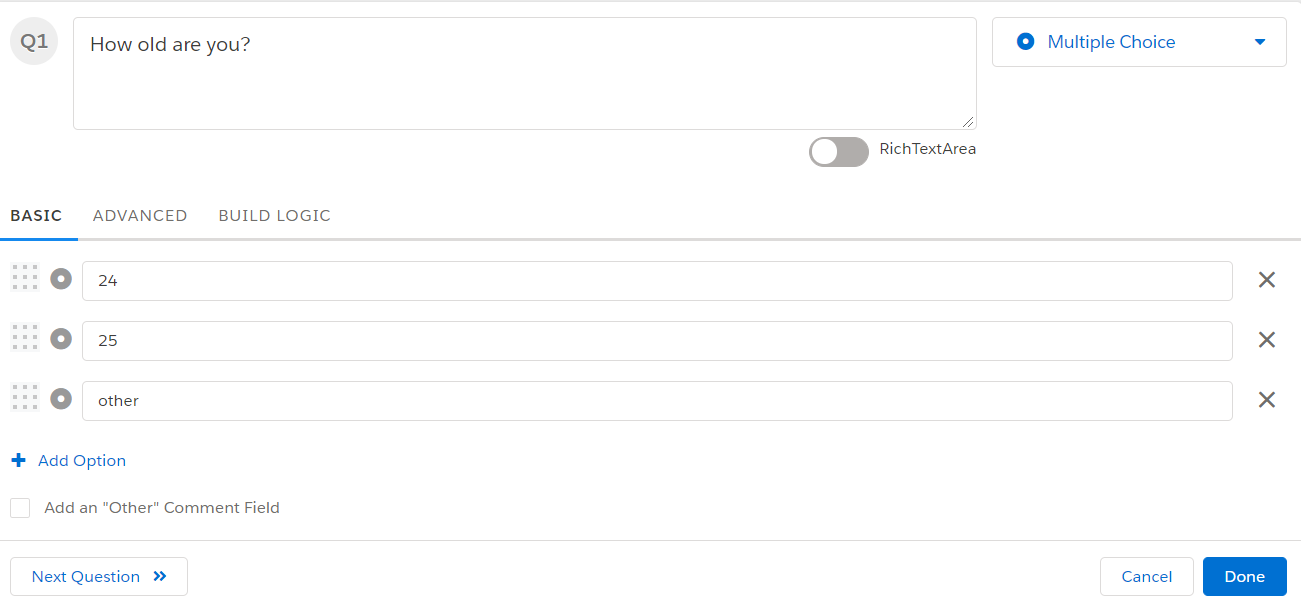
- Optional: review the settings under Advanced Settings on the right, or turn on RichTextArea to format the question text.
- Click Done.
Edit a question
- Open the survey in the builder and click the Questions tab.
- Click the arrow button at the right of the question.
- Click Edit.
- Change the question text, answer choices or settings.
- Click Done.
Question settings
Each question has these options:
- Basic tab: add or update the question text and answer choices.
- Advanced Settings: turn on settings that affect what kind of data your question collects, such as Require an Answer to This Question, Hidden Question and Show Help Tip. The settings you see depend on the question type. See Choose a question type.
- Build Logic tab: for some closed-ended question types, add logic to send respondents to a specific question based on their answer. The tab appears once the question is saved.
- Duplicate: in the arrow menu, copy the question to create a duplicate in your survey.
Change the question type
When you add or edit a question, you can change the question type with the question type button to the right of the question text.
You cannot change the question type if the question has Question Build Logic, if the survey is published or archived, or if the question has already collected responses.
Add or delete answer choices
- To add a choice, click Add Option (the plus icon).

- To delete a choice, click the X icon at the right of the choice.
A question needs at least 2 answer choices. You can add or delete choices only if the question has not collected responses and the survey is not published.
Add questions in bulk
You can also paste many questions and answer choices into InPoll at once, instead of adding each question one by one. See Add questions in bulk.