
Use this guide to preview a survey on desktop and mobile and to test its question logic before you send it. For survey creators.
Preview the survey
- On the Surveys tab, click the survey to open it in the builder.
- Click the Preview tab.
- Answer the questions to test them and to check the design. If the survey has a welcome note, click Start Survey first.
- Click the Desktop View or Mobile View icon at the top right to switch between the two views.
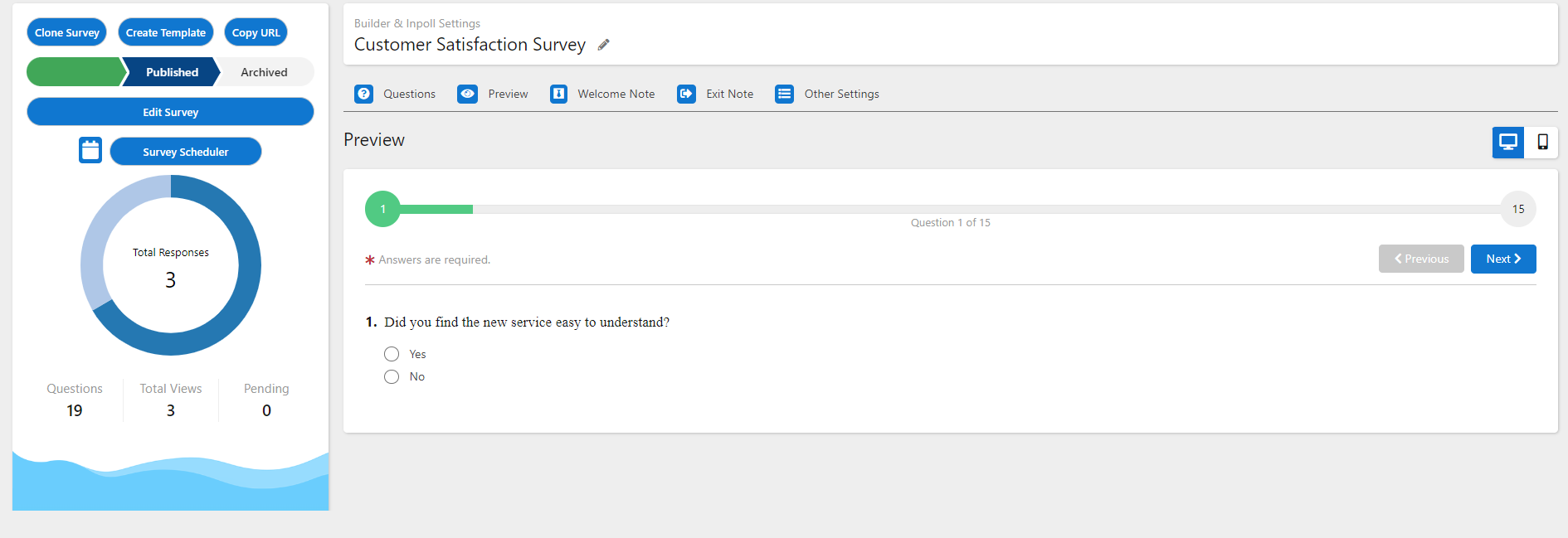
Previewing a survey does not record any responses. It is only for testing and review.
Test question logic
If questions have logic, answer them in the preview and check that the right questions appear. Make sure everything works as you expect.
Good to know
- You can also open a preview from the Surveys tab. Click Show More on the survey, then View.
- At the end of the preview, click PREVIEW AGAIN to start over.